How to Animate a Logo in 3 Ways: Bring Your Brand to Life Easily
Last Updated: 2026. 04. 27
For content creators, having a compelling logo animation in your video not only helps grab viewers' attention but also enhances brand awareness and protects your video content from unauthorized uses.
So, in this tutorial, we will walk you through how to animate a logo with an AI logo animation maker or using Adobe Premiere Pro and After Effects to create a more complex logo animation.
Here is a quick takeaway for how to animate a logo:
Logo animations are often added in the intro/outro of a video for branding.
Preferably prepare a high resolution and PNG format logo with transparent background, which makes it easier for blending it into the video.
For intricate logo animations, quite often, you need to separate a logo into a logo icon, and individual logo texts and later use multiple keyframes, separate timelines, and professional graphic tools and animation effects in AE to animate different parts of a logo as a whole. Also read the top 8 animated logo makers online.
FlexClip - AI-powered Logo Animation Maker Online
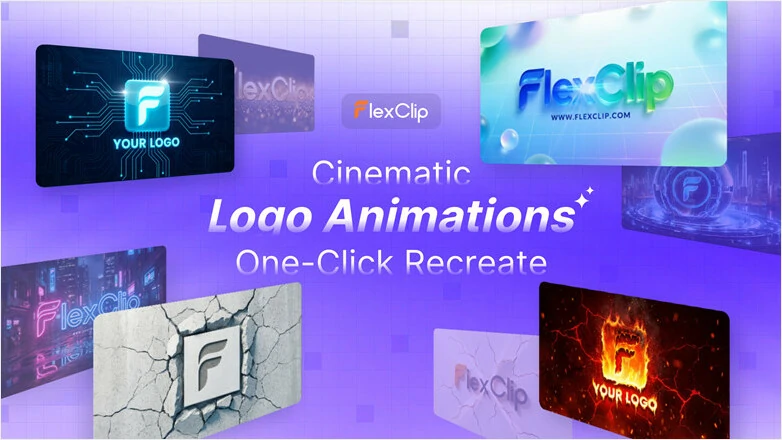
Creating a logo animation to make your brand stand out is easy with FlexClip's AI logo animation maker. Powered by advanced AI technology, it swiftly turns your static logo image into an expressive logo animations, perfect for video intros and outros, social media content, websites, promotional ads, company profiles, and event presentations.
AI Logo Animation Logo Maker - FlexClip
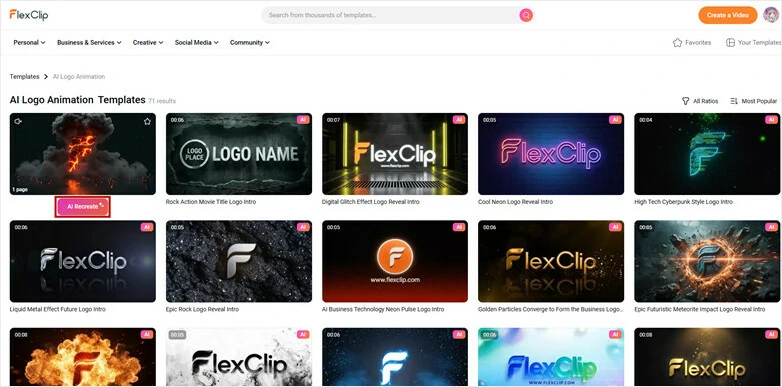
Meanwhile, it offers a wide range of logo animation templates in styles like minimal, 3D, glitch, particle, neon, fire, and more—so you can showcase your logo in a way that perfectly matches your theme without entering a prompt. No editing experience is needed: simply upload your logo, and FlexClip will take care of the animation, helping you create polished, professional logo animations up to 10× faster.
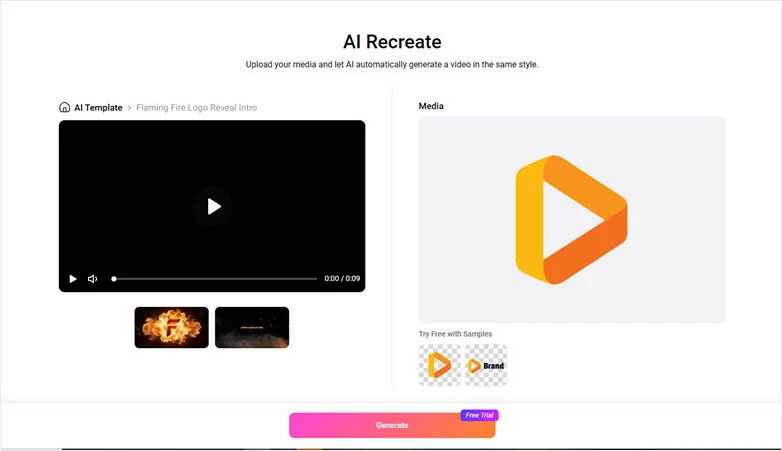
Then, drag and drop your logo image or click Upload Files to choose the one you want to animate. After that, hit Generate and AI will generate a stunning logo animation in the same style of the reference.
Upload Your Logo Image and Generate Animation
Step 3
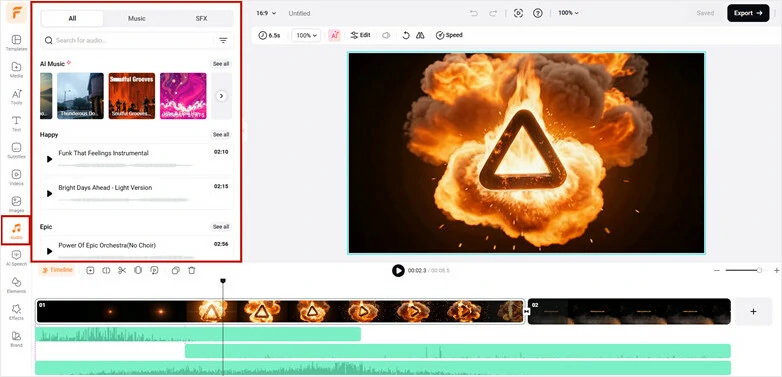
Preview the generated animation in FlexClip. If you want to add a personal touch, just customize the clip by changing background music, adding your brand website or combing this logo intro into your promo video. Once you're satisfied, export the logo animation video and share it to wow your audience.
Customize the Logo Animation and Share it to Wow Your Audience
Beyond ready-to-use AI logo animation templates, FlexClip also provides a flexible alternative that gives you full control over your logo animation design—while still maintaining the speed and high-quality results of AI-powered creation. Here's how to make your logo move with FlexClip's AI image-to-video generator:
Step 1
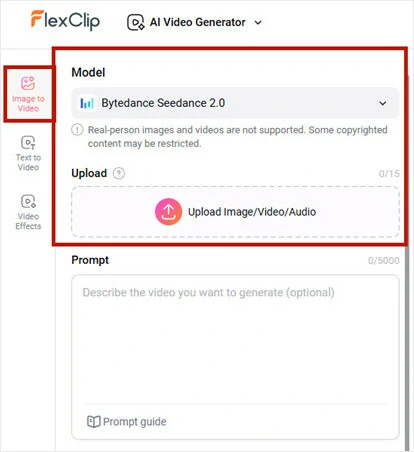
Open FlexClip’s AI image-to-video generator in your browser and choose your preferred model. FlexClip brings together leading generation models from top platforms like Sora, Google Veo, Kling, and ByteDance—so you can explore creative possibilities without switching tools or comparing services.
Upload an Image to FlexClip's AI Image-to-video Generator and Select a Generation Model
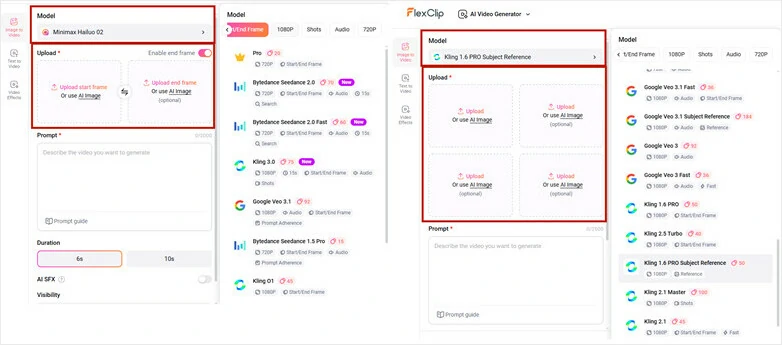
Pro Tips: Enable the end-frame feature to smoothly connect your starting and ending frames with natural, fluid animation. For logo animations using multiple images, apply Subject Reference to keep elements consistent and bring your vision to life.
End Frame Model and Subject Reference Model
Step 2
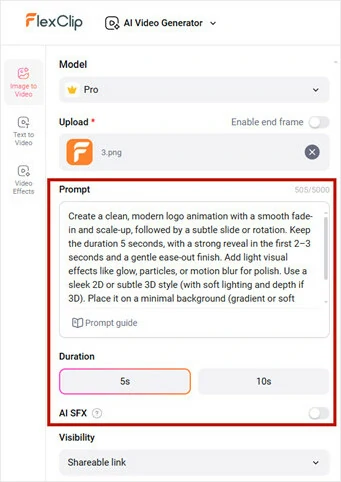
Enter a prompt describing how you want your logo to animate, including motion style, timing, visual effects, 2D or 3D look, and any background elements. Then adjust settings like aspect ratio, duration, AI sound effects, and other options based on the model you choose.
Enter a Prompt and Make Settings
Step 3
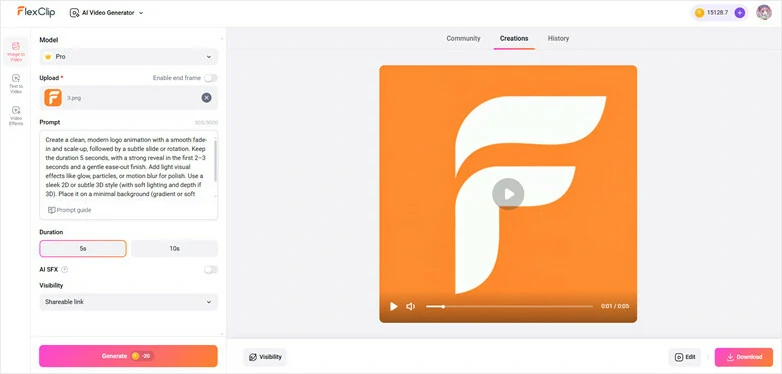
Hit Generate and let AI animate it in your desired way. Within minutes, FlexClip will deliver you an expressive logo animation video with fluid movements and state-of-the-art design. Directly save the logo animations as custom templates and easily apply them to every new video project or load it into FlexClip's built-in video editor for personalized customization and share with great ease.
Download or Edit the Generation Logo Animation Video
How to Animate a Logo in Premiere Pro
Looking for a professional logo animation maker to make manual editing smoother? Then Adobe Premiere Pro promises to take your logo animation up a notch. Of course, it takes more time and you need to be skillful in adding keyframes and video effects to animate a logo as you wish. Follow the example below to animate a logo using Premiere Pro.
How to animated a logo in Premiere Pro.
Step 1
Import your logo on the timeline of Premiere Pro and extend its duration to around 10 secs. If your logo is too big on the canvas, go to the Effects Control panel > use the Scale tool to scale down the size of the logo and reposition the logo to wherever you want.
Step 2
Add the title for the logo: Click the Type tool to add texts into the video > center align the texts to the logo > extend the duration of the texts to that of the logo.
Step 3
Animate the logo with bouncing effects: With all the layers selected, go to the Effects panel > type in transform > drag the transform effects to all the layers> now select the logo layer only > go to Effect Controls > click the stopwatch to add the first keyframe for the logo > hit the right arrow key to skip the playhead forward and add another keyframe meanwhile adjusting the position > repeat the same move > next move the playhead back and set another keyframe by moving the logo out of the frame.
Step 4
Use the same keyframe techniques above to animate the texts from both sides of the video frames.
How to Animate a Logo in After Effects
If you want to create Hollywood-like logo animations that you’ve seen on YouTube or TV ads of big brands, Adobe After Effects should be your ultimate choice. Besides, using AE to animate a logo also involves the steepest learning curve.
Yet, its powerful tools such as graphic editor, separate animation timelines, keyframes, stunning visual effects for graphics, and intricate attributes of media assets controls can help you create logo animations like no other. So, it’s recommended only to seasoned video editors and graphic designers.
Here is an example of how to animate an Adidas logo with dazzling stroke and radial wipe animation effects in After Effects, which is definitely not for beginners.
How to animate a Adidas logo in AE.
Step 1
Create a new composition and import your logo into After Effects.
Step 2
Create a solid color layer for the video background: Right-click on the main panel > New > Solid > select red color > click OK. Then, put the background layer below the logo.
Step 3
Animate the logo icon: Right-click on the logo layer > Pre-compose > rename it logo > select Move All Attributes into the New Composition > click on OK. > select the logo layer > go to Effects and Presets panel > type in fill in the search bar> drag to apply the fill effect to the logo layer > set its color to white >select the logo layer > click Layer menu on the top > Auto-trace > set channel to Alpha > click OK.
Step 4
Add stroke animation effect to the logo: Go to Effects and Presets window > type in stroke in the search bar > drag and drop to apply the stroke effect to the logo layer > go to Effect Controls > set Brush Hardness to 100% > turn on All Masks > uncheck Storke Sequentially > set Paint Style to reveal the original image.
Step 5
Set details of stroke animation: Set Brush Size to around 16 > go to the logo layer and use hotkey U to bring out the stopwatch and move the brush size layer’s playhead forward to set the firest keyframe > set the Brush Size to zero > select these two keyframes and press F9 to make them ease.
Step 6
Go back to Effects Controls > set Start to 100% > click the stopwatch to set the first keyframe > move the playhead around 2 secs and set the 2nd keyframe > set the Start to zero > select logo layer and use hotkeys U to open the keyframe > select these two frames and press F9 to open graph editor > create a steep speed ramp.
Step 7
Select the logo layer > press Ctrl+ D twice > select these two layers > move them around 8 frames forward > repeat the same move for the first layer > change the colors of the last two layers for the stork animation in the Effect Controls panel.
Step 8
Select the first logo layer > press Ctrl+D > delete the stroke effect > change the color of this layer > select the logo layer > go to Effects and Presets window > type in Radial Wipe > apply Radial Wipe effect the logo layer > go to Effect Controls > set Wipe to counterclockwise > change the wipe center > increase the amount of transition completion > click the stopwatch next to it to set the first keyframe > move playhead forward to set the 2nd keyframe and transition completion to zero.
Step 9
Adjust the speed of radial wipe animation: Select the first logo layer > press U > select these two keyframes > press F9 and create a steep speed ramp in the graph editor.
Step 10
Change the color of the radial wipe logo layer and set the color to white > move the layer two frames forward.
Step 11
Animate the logo texts: Turn on the logo text layer > move the playhead forward a few secs > select text layer > press P > hold Shift + T > select two keyframes and move them forward > lower the position of the text > set opacity to zero > select these two keyframes and press 9 to make them ease > select the first two keyframes > open graph editor > create another speed ramp for the logo text.
Step 12
Add shadows to the logo and log text: With all the logo animation layers selected > right-click and choose Pre-compose > rename it to logo animation > select move all attributes > click OK > select logo animation layer > press Ctrl+D > select the duplicated layer > search Fill in the Effects and Presets Panel > apply the fill effect to the second logo layer > go to Effects Controls > set the color to black > go to Effects and Presets Panel > type in CC radial fast blur > apply the fast blur effect to the logo layer > adjust the center position, and lower the amount, opacity. Done.
Now, It's Your Move
In conclusion, creating a logo animation for your videos not only adds interest and styles to your video content but more importantly boosts brand image and helps protect your copyrights. For beginners,